






The HP Z32k G3 4K USB-C Display is a new 32-inch monitor that offers an amazing visual experience with an IPS black panel that delivers twice the contrast of traditional IPS monitors. This technology is able to produce deeper shadows and richer colors while maintaining the wide viewing angles that are characteristic of IPS panels. With a VESA display HDR 400, 98% wide P3 color gamut, built-in KVM switch, and 100W power delivery, the HP Z32k G3 offers a lot in one package.
The HP Z32k G3 4K USB-C Display is a new 32-inch monitor that offers an amazing visual experience with an IPS black panel that delivers twice the contrast of traditional IPS monitors. This technology is able to produce deeper shadows and richer colors while maintaining the wide viewing angles that are characteristic of IPS panels. With a VESA display HDR 400, 98% wide P3 color gamut, built-in KVM switch, and 100W power delivery, the HP Z32k G3 offers a lot in one package.
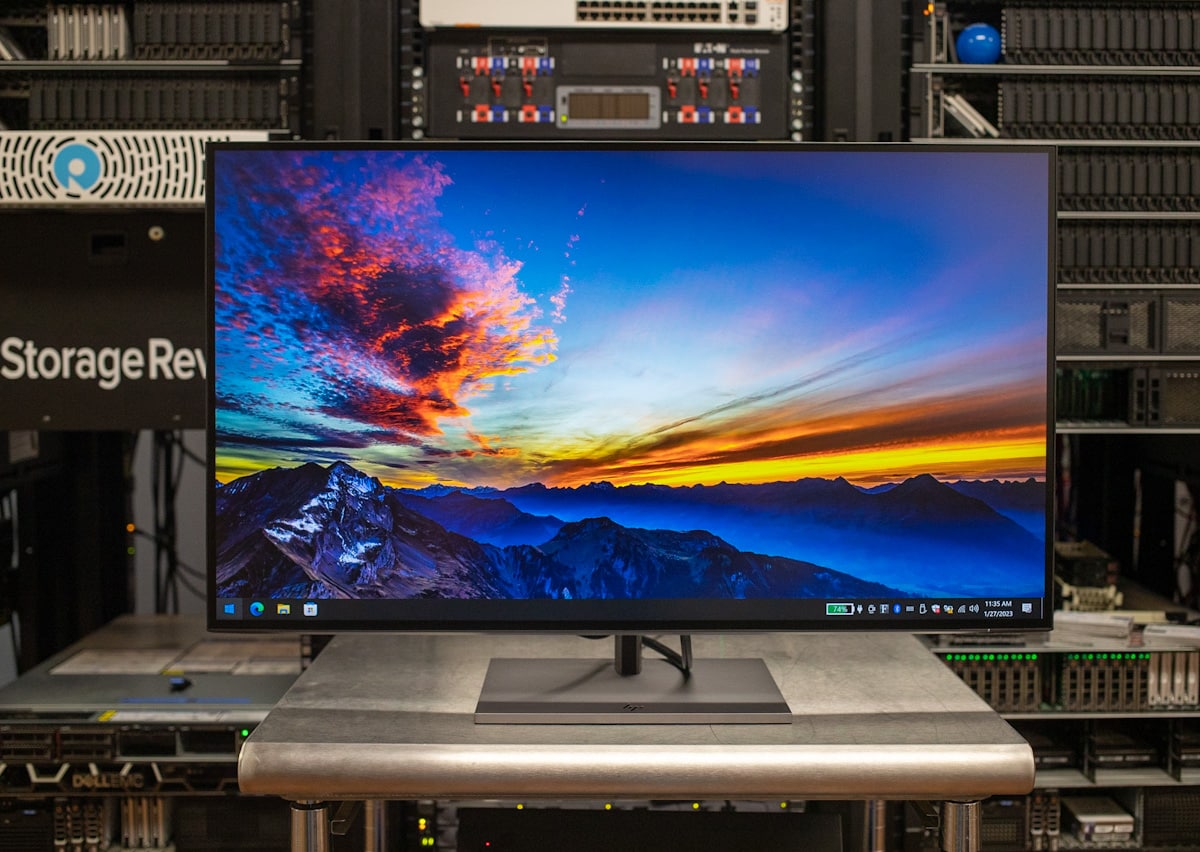
HP Z32k G3
The HP Z32k G3 4K USB-C Display offers a wide range of connectivity options. Thunderbolt 4 allows the user to drive his 4K resolution at 60Hz and connect his second 4K monitor using daisy chain. But the functionality doesn’t end there, as the monitor acts as a central hub for connections with his built-in KVM switch. To minimize wiring for multiple systems, the monitor comes with numerous USB connections onboard, as well as Ethernet for wired network connectivity.
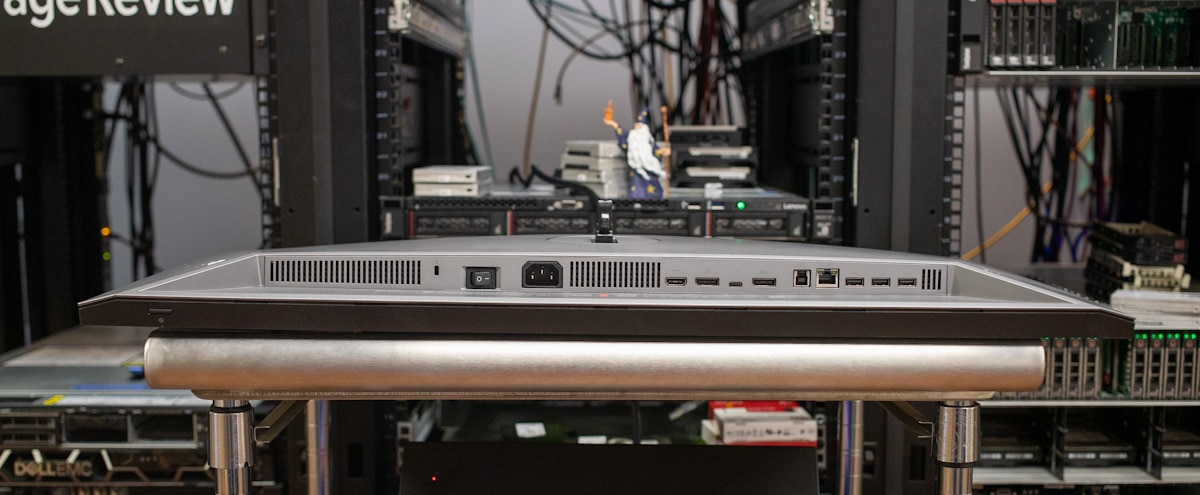
HP Z32k G3 port
The HP Z32k G3 4K USB-C Display is designed with your convenience in mind. Its intelligent controls allow the user to get to work quickly, and his built-in KVM switch allows him to seamlessly multitask between two of his devices using one keyboard and mouse. Plus, the Single Power On feature wakes up your display and PC instantly, saving you time and effort.
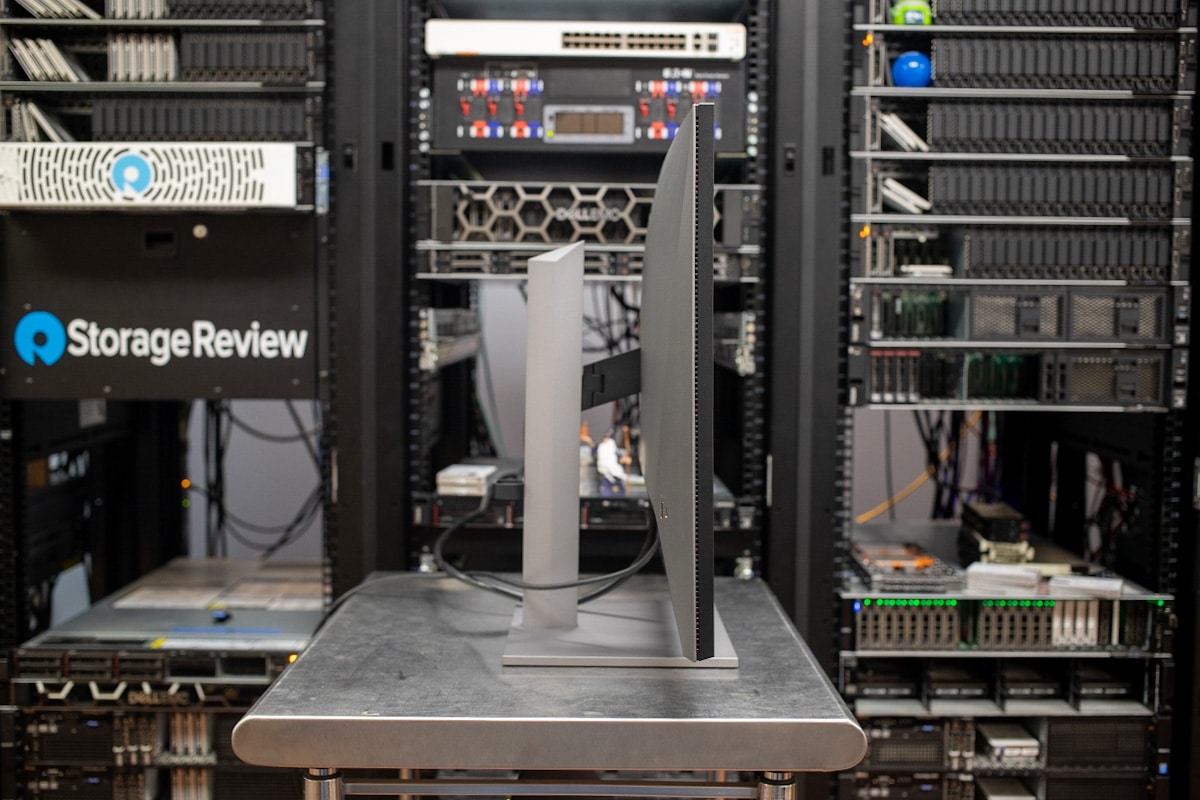
HP Z32k G3 left side
In keeping with HP’s commitment to the environment, this display is made from recycled materials. It contains 85% recycled plastic and 5% ocean plastic, and the stand is made from 90% recycled aluminum. These materials help HP conserve natural resources, reduce waste and use less energy.
IPS, VA, OLED or Black IPS
IPS (In-Plane Switching), OLED (Organic Light-Emitting Diode), and VA (Vertical Alignment) are all different technologies used in display panels such as TVs, computer monitors and smartphones. The main difference between these technologies is how they generate images on the screen.
IPS display panels use parallel-arranged liquid crystals to produce clear, consistent images. They are known for their wide viewing angles and excellent color accuracy, making them popular for professional displays.
OLED display panels use organic compounds that emit light when an electric current is passed through them. This allows you to turn individual pixels on and off, resulting in very deep blacks, high contrast, and fast refresh rates. Organic EL panels are widely used in high-end TVs and smartphones, and are top class in terms of cost.
VA display panels use vertically aligned liquid crystals, which provides better contrast than IPS panels. It also has fast response times, commonly found in gaming monitors.
Black IPS panels build on the quality of traditional IPS, but can offer deeper blacks due to deeper contrast levels. While traditional IPS panels have a contrast of 1000:1, black IPS panels reach 2000:1. This fills the gap for users looking for deeper blacks, but with better color accuracy and viewing angles than what VA displays offer.
HP Z32k G3 4K USB-C Specifications
| screen type | IPS |
| display size | 80 cm (31.5 inches) |
| Luminance | 400 nits |
| contrast ratio | 2000:1, 10,000,000:1 dynamic |
| response rate | 5ms GtG (with overdrive) |
| color gamut | 100% sRGB; 98% DCI-P3 |
| aspect ratio | 16:9 |
| native resolution | 4K UHD (3840×2160) |
| Supported resolution | 640×480; 720×400; 800×600; 1024×768; 1280×720; 1280×800; 1440; 3840×2160 |
| Display function | On-screen controls; Single power-on; Anti-glare; Height adjust/tilt/swivel/pivot; HP eye-ease; IPS black |
| user control | Management; Information; Exit; Input; |
| input signal | 1 HDMI 2.0; 4 USB-A 3.2 Gen 1; 1 DisplayPort 1.4 inch. 1 DisplayPort 1.4 output; 1 USB Type-C (alternate mode DisplayPort 1.4, up to 100W power delivery), 1 SuperSpeed USB-C 5Gbps /w 15W power delivery |
| networking connection | 1 RJ-45 (10/100/1000Mbps) |
| power consumption | 180 W (maximum), 33 W (typical), 0.5 W (standby) |
| Size | 71.35 x 4.7 x 41.59 cm (without stand) |
| weight | 9 kg (with stand) |
| physical security features | Supports security lock |
| pixels and panel bits |
|
| View specifications |
|
| display frequency |
|
| guarantee | 1 year standard |
Designing and building the HP Z32k G3
The HP Z32k G3 is also a very versatile display, offering a wide range of movement options as it can be tilted, swiveled and pivoted at different heights (thanks to flexible mounting connectors). This means you can place your monitor in a position that is comfortable for you and stays firmly in place. No matter what position I set the monitor in, I always found it to slide smoothly and easily into place and stay stable.
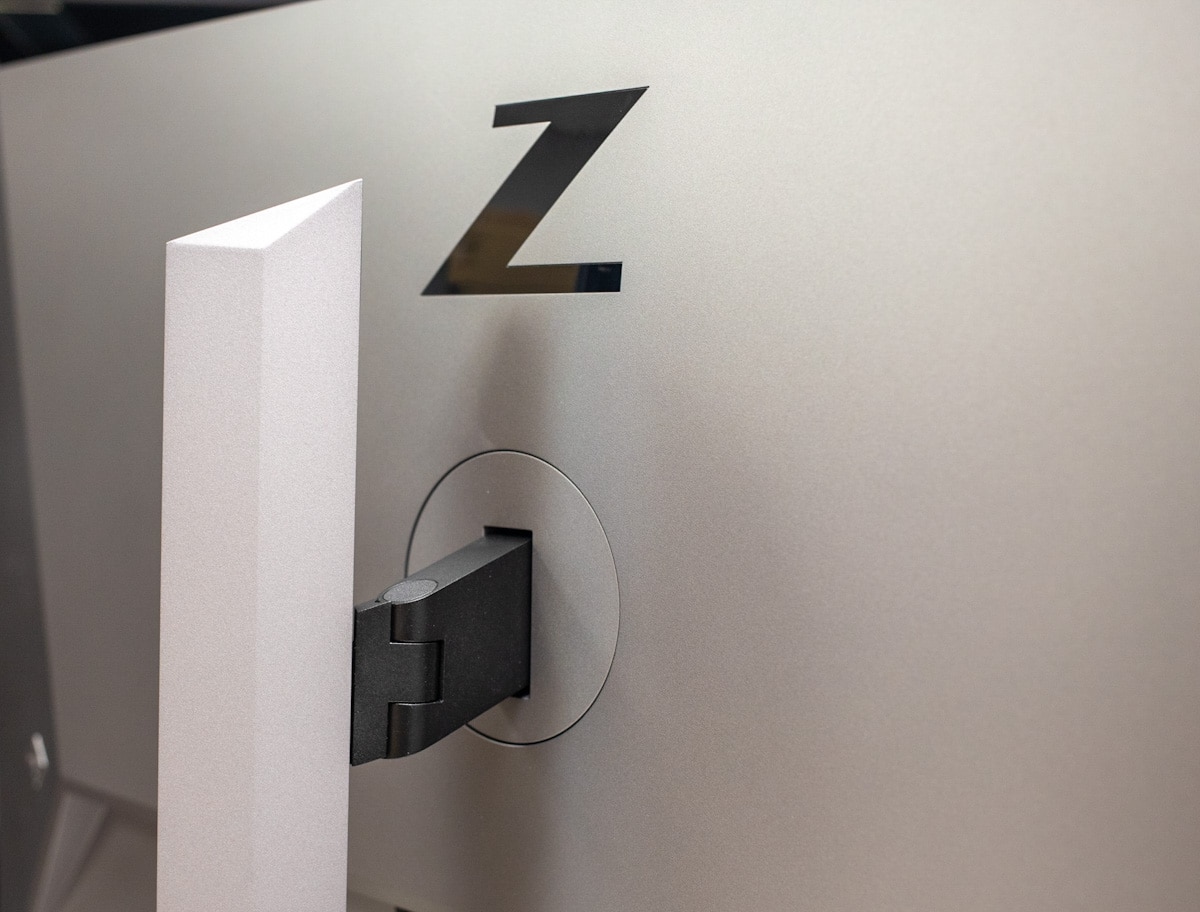
HP Z32k G3 Stand Mount
The HP Z32k G3 also has a wide range of connectivity features, all on the back of the monitor. From the left is his OSD button on the joypad, used to both access and navigate the menu system.
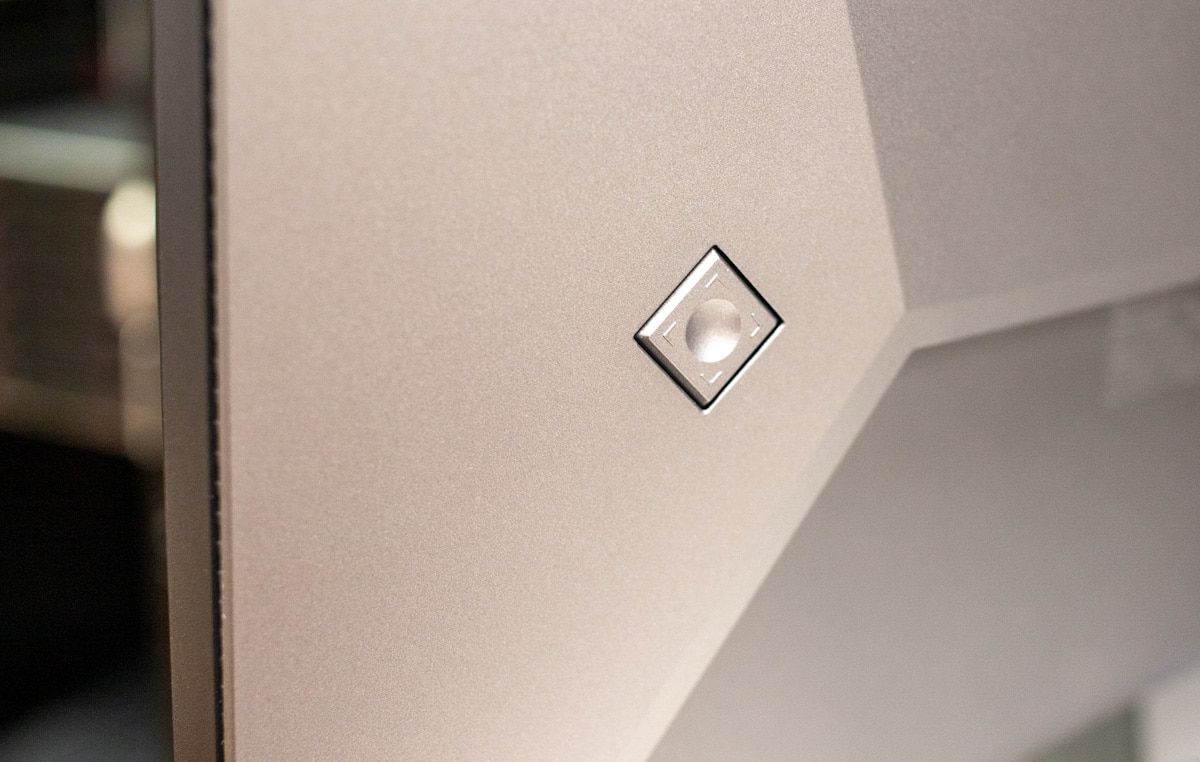
HP Z32k G3 Joypad
Then there’s an AC power port, an HDMI 2.0 port, two DisplayPort 1.4 ports (one of which is used as an “out” port for KVM functionality), a Thunderbolt 4 port, an RJ-45 port, and three USB-A ports. . port. It also has a USB-B port, commonly used to connect peripherals such as keyboards, mice, and external hard drives, as well as to update and control firmware.
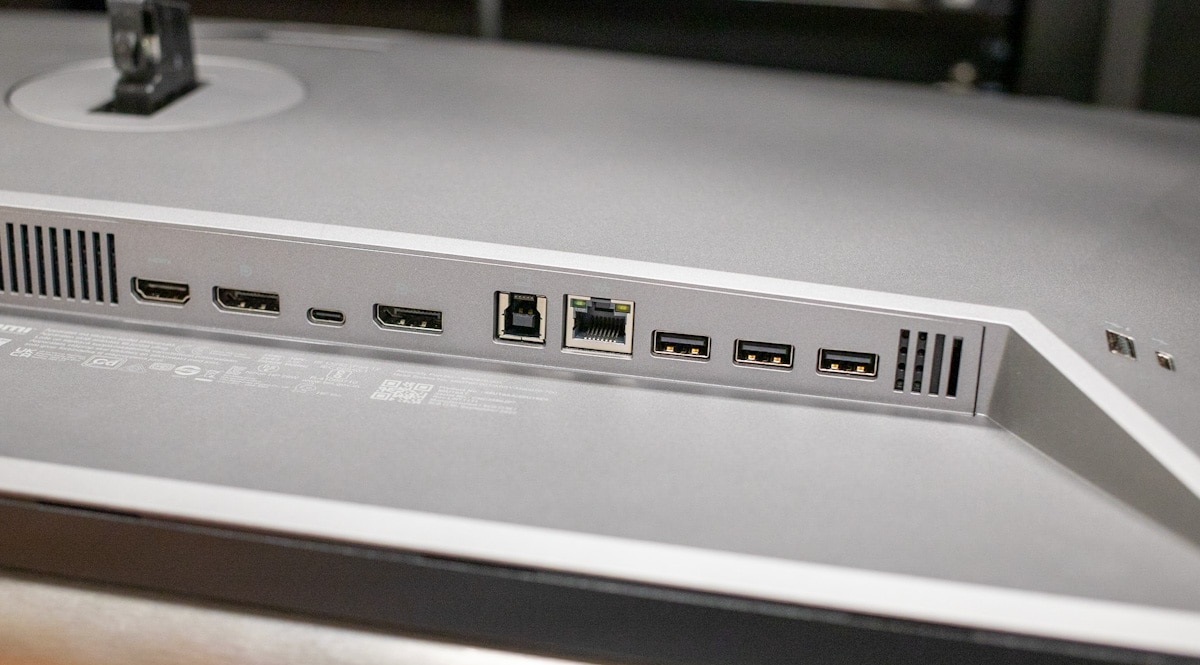
HP Z32k G3 Port Details
The right side has another USB-A and USB-C port.
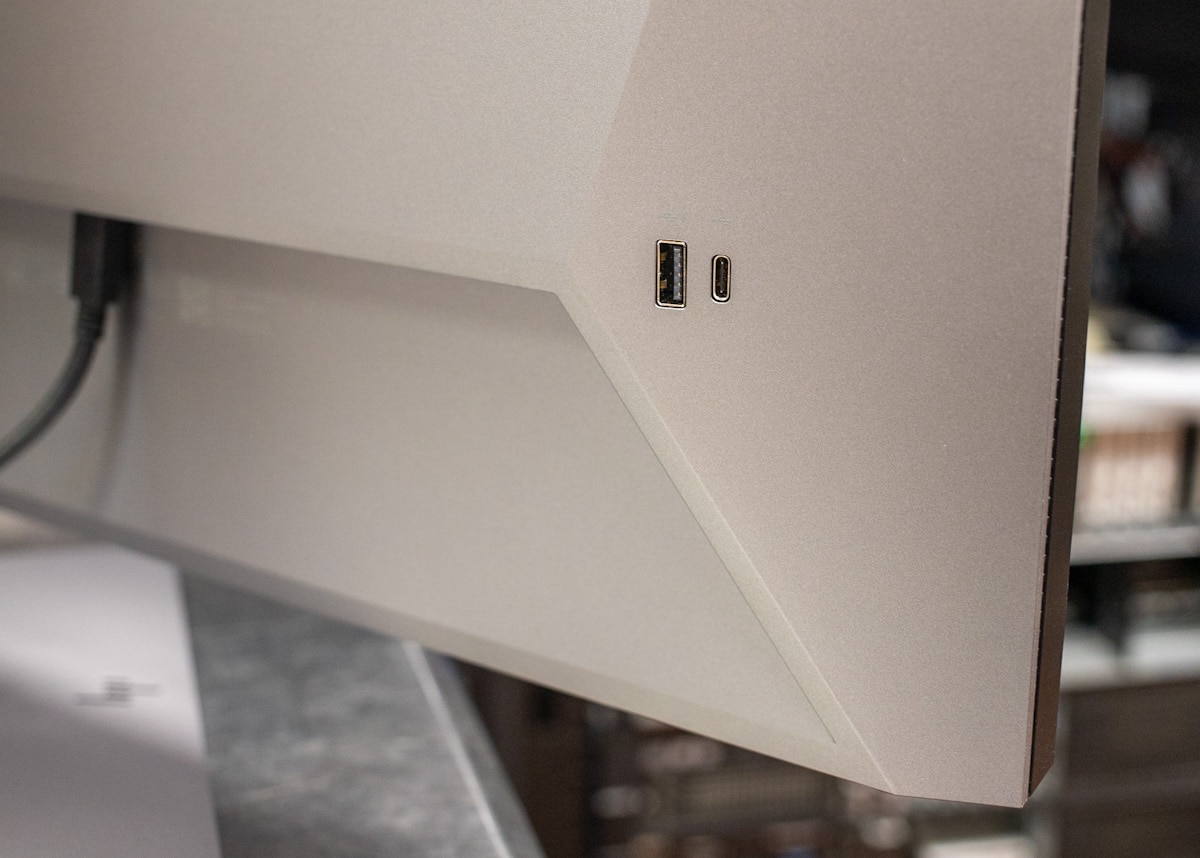
HP Z32k G3 secondary port
HP Z32k G3 in use
Achieving a clutter-free workspace with multiple systems can be difficult, especially when dealing with the large amount of wires and cables required to connect everything. One way to deal with this problem is to use docking stations and KVM switches. The HP Z32k G3 does both of these things at the same time, making it a very interesting display solution on the market.
A built-in KVM (keyboard, video, mouse) switch lets you control multiple computers with just one keyboard and mouse, eliminating the need to physically change cables and peripherals. This greatly reduces code clutter, allows you to work on multiple computers at the same time, eliminates the need for frequent switching between keyboard and mouse, and eliminates the need for additional peripherals (saves desk space can). All of this makes it especially useful for professionals who work with multiple computers simultaneously and IT professionals who manage and troubleshoot multiple servers.
KVM has traditionally functioned as a separate device via monitor buttons or keyboard hotkeys. However, this feature is built in and accessible through his OSD on the monitor.
Simply use a DisplayPort or HDMI cable and plug one end into the appropriate connector on your monitor and the other end into the corresponding connector on the second computer. When using a USB connection, it supports USB Type-B to Type-A cables. The monitor will automatically switch to both video and USB data Thunderbolt inputs when plugged in, and switch back to the active input (DisplayPort or HDMI) when disconnected. I tested it on two laptops and all of this worked seamlessly.
If two working computers are connected to the monitor, the on-screen display (OSD)[次の入力]You can easily switch between KVM functions with the push of a button.
The OSD itself was fast and easy to use, allowing me to easily adjust settings and customize the display based on my own preferences (including all the usual suspects). To access the OSD, simply press the small joypad on the back right side of the monitor.
OSD contains the following options:
- Brightness +: You can adjust the brightness level of the screen.
- Color: Provides various presets to configure your monitor for different viewing situations.
- Input: Select video input signal from Thunderbolt USB Type-C, DisplayPort, or HDMI.
- Image: Adjust the screen image, including response time, sharpness, and image scaling.
- Power: Adjust power settings.
- Menu: Allows you to adjust the OSD menu, function button control and language.
- Manage: Restore all OSD menu settings to factory default settings.
- Information: Displays information about your monitor, such as optimal display mode, power mode, and serial number.
Conclusion
The HP Z32k G3 4K USB-C Display is a versatile monitor that offers an excellent visual experience with its IPS black panel. During our testing, we found that this produced deeper shadows and richer hues while maintaining the wide viewing angles that IPS panels are known for. With a VESA display HDR 400, 98% wide P3 color gamut, built-in KVM switch, and 100W power delivery, the HP Z32k G3 has a lot to offer for a wide range of use cases.
The HP Z32k G3 4K also comes equipped with a huge amount of connectivity options. Thunderbolt 4 allows the user to drive his 4K resolution at 60Hz and connect his second 4K monitor using daisy chain. The monitor also acts as a central hub of connectivity with his built-in KVM switch. This allows the user to seamlessly multitask between two devices using his one keyboard and mouse. Additionally, the monitor has numerous USB connectivity options and Ethernet for wired network connectivity.
Overall, it’s clear that this monitor was designed with user convenience in mind. Its intelligent controls allow the user to get to work quickly, and the built-in her KVM switch allows him to seamlessly multitask between two devices using one keyboard and mouse. In addition, the Single Power On feature instantly wakes up the display and his PC, saving you time and effort. It also uses recycled materials and complies with HP’s commitment to the environment.
This monitor is available from HP for $839 at the time of this review, but is out of stock. $845 on Amazon.
Join StorageReview
Newsletter | YouTube | Podcast iTunes/Spotify | Instagram | twitter | | Tik Tok | RSS Feed
