











Here’s how to set your iPhone to automatically go into low power mode at a certain battery level.

Tired of having to constantly charge your iPhone all day long? Low Power Mode is a handy feature that helps extend the battery life of your device. This article will show you how to set Low Power Mode to activate automatically when your iPhone’s battery reaches a certain level. This allows you to keep your phone on and ready to go.
What is iPhone Low Power Mode and how does it work?
Low Power Mode is an iPhone feature that helps conserve battery life on your iOS device when power is running low. With this feature enabled, your iPhone will reduce the amount of power it uses by turning off or disabling certain features that are known to use a significant portion of your battery. This helps extend your device’s battery life when you need it most.

When Low Power Mode is enabled, iPhone disables some battery-intensive features, such as automatic fetching of emails, background app refresh, and iCloud photo backup. If you have a Pro model iPhone, such as the iPhone 13 Pro or iPhone 14 Pro, the display refresh rate is also limited to 60 Hz. The device will also stop automatically downloading app updates and reduce maximum CPU, GPU, and network performance to save power.
Currently, to enable low power mode, Settings → Battery or by adding it to control centerWhen your battery reaches 20%, your iPhone may also prompt you to enable Low Power Mode. While these options are useful, they require manual intervention and may not activate at the desired battery level.
Automate Low Power Mode on iPhone
Luckily, there is a way to set up a low power mode shortcut that automatically triggers when your battery drops below a certain percentage (like 25% or 30%). I’ll also show you how to set a shortcut to charge your iPhone and disable low power mode when the battery reaches a certain level. This will resume features that were disabled during power saving mode. Here’s how to do it using the Shortcuts app on your iPhone.
Enable Low Power Mode on iPhone When Battery Drops Below a Certain Level
- To get started, shortcut apps on your iPhone. If you don’t have the app installed, you can download it from the App Store.
- Shortcuts app automation tab from below.Select Now Create a personal automation.
- A prompt will appear on your iPhone.Scroll down and tap battery level.
- Drag the slider to set the percentage to start low power mode, then tap. NextI chose 30% as an example, but you can also choose to trigger at 50%.
- under the slider fall down [X%]In this case, when the battery drops below 30%, or 29%, Low Power Mode will automatically turn on.
- tap now add action and choose Low power mode settingMake sure the action says “Turn on low power mode”.
- Tap Next.
- To disable ask before doing toggle. Alternatively, you can choose to have your iPhone send you a notification each time your automation runs. This serves as a handy reminder to charge your device.
You have now successfully configured your automation. Low Power Mode is automatically enabled on iPhone when the battery drops below a specified percentage.
Automatically turn off Low Power Mode on your iPhone when the battery is charged to a certain level
- Open the Shortcuts app on your iPhone.
- once again, automation Click a tab and then select Create a personal automation. If you have created an automation before, + icon in the upper right corner.
- Scroll down and tap battery level.
- Drag the slider to set the battery level at which Low Power Mode turns off, then tap. Next.
- under the slider go up [X%]In this case, when the battery is above 35%, i.e. 36%, Low Power Mode will automatically turn off.
- On the next screen, tap add action and choose Low power mode settingMake sure the action is “Turn off low power mode”.
- Tap Next.
- To disable Confirm before execution toggle. Alternatively, you can choose to have your iPhone send you a notification each time your automation runs.
With this automation, Low Power Mode automatically turns off when your iPhone charges to a certain level, allowing disabled features to resume.
All in all, setting a low power mode shortcut on your iPhone is a useful way to ensure that your device’s battery life is saved when your device’s battery is low. By triggering a shortcut at a specific battery level, you can have Low Power Mode automatically activate without the need for manual intervention.
If you have any questions or comments, feel free to leave a comment below. I look forward to hearing from you. We are always happy to help.
Check out these amazing Apple iPhones!
-
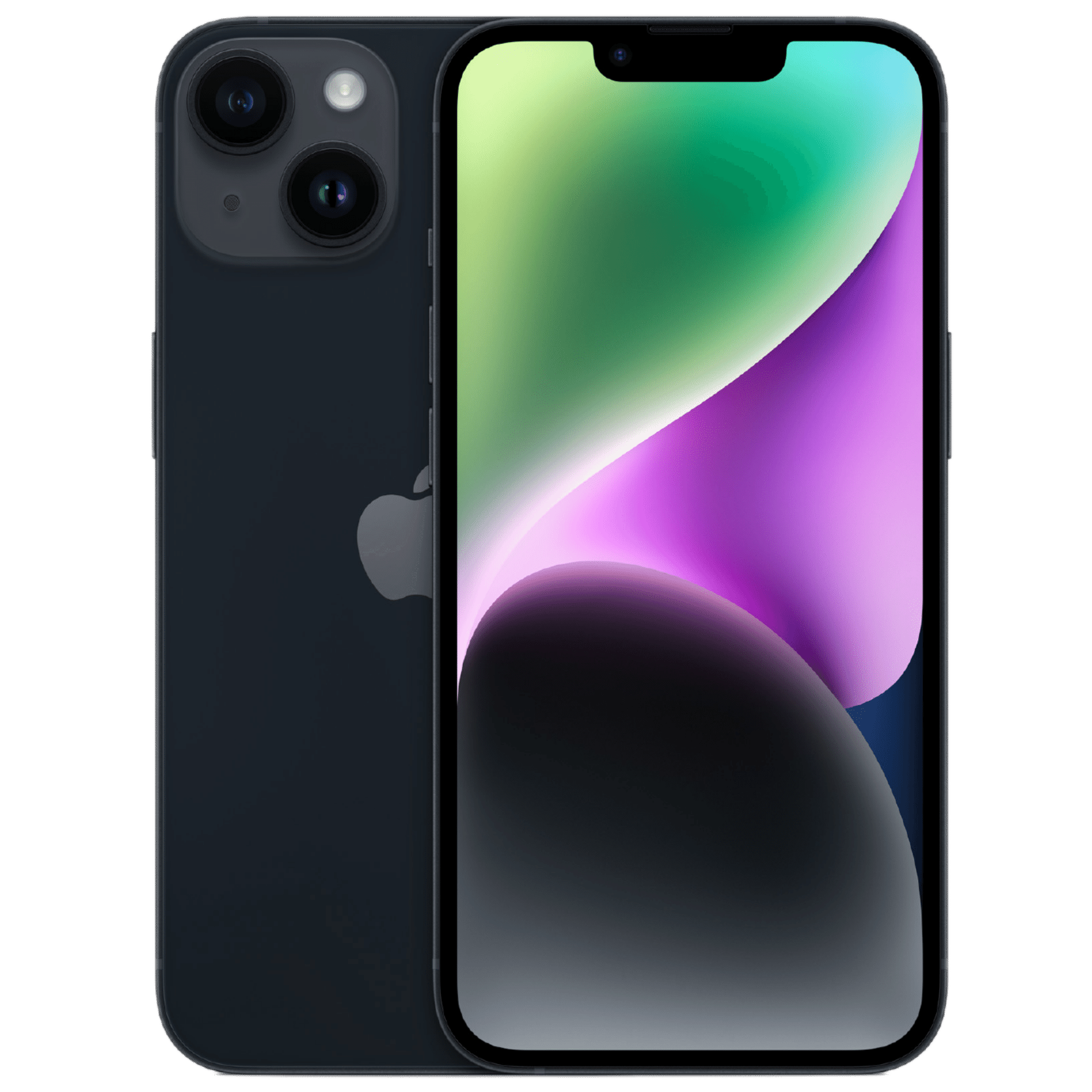
Apple iPhone 14
The iPhone 14 enters the market as the smartphone of choice when you want high-tier performance, great cameras, and battery life to make your day easier.
-
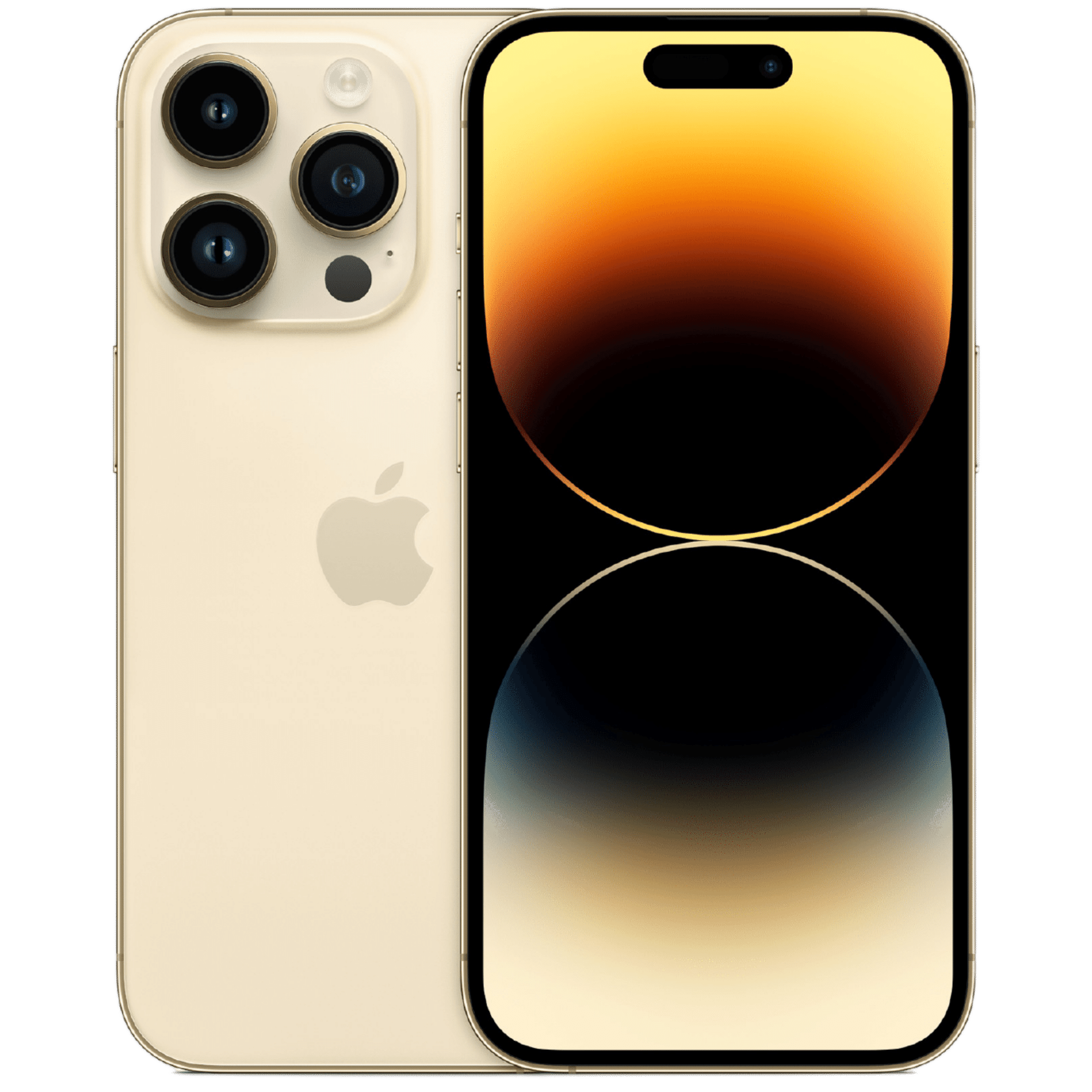
iPhone 14 Pro
The iPhone 14 Pro is the brand’s latest premium smartphone. It features a new circular ‘Dynamic Island’ notch, a 48MP primary camera sensor, an A16 Bionic chipset and more.
-
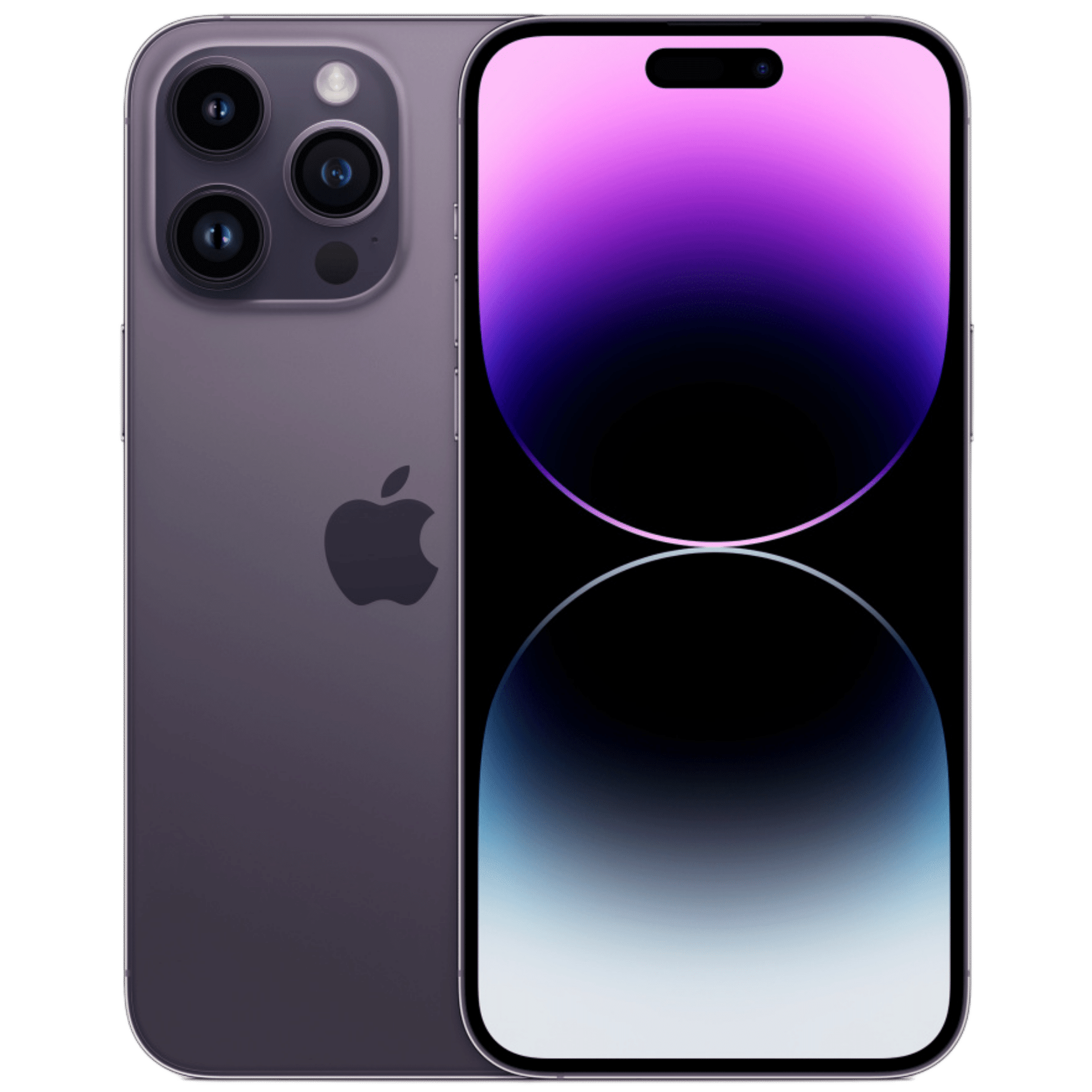
iPhone 14 Pro Max
The iPhone 14 Pro is the brand’s latest big-screen premium smartphone. It features a new round ‘Dynamic Island’ notch, a 48MP primary camera sensor, an A16 Bionic chipset and more.


