











Just got a new laptop? congratulation! Whether you’re upgrading to the latest model or switching to a different model, here are some important considerations before throwing away your old Mac. This article provides 10 essential tips to follow before selling or giving away your old Mac. From backing up your data to permanently removing your Mac from your Apple account, we’ll walk you through the steps and tips for a safe and smooth transition.
1. Back up your data
The first and most important step you should take before switching to a new device is backing up all your data. If you don’t back up your old Mac’s files, you may lose access to important documents, photos, and files you might need later.

Thankfully, Apple offers the best way to back up files and data on your Mac with its built-in Time Machine tool. Alternatively, you can back up your important files to a local external hard drive, cloud storage service, or third-party apps. Be sure to check out our guide that has all the best ways to back up your Mac data.
2. Cancellation or Transfer of AppleCare+
Macs are expensive, and many opt for AppleCare+ plans for added peace of mind. AppleCare+ not only extends the warranty period to his three years, but also provides AppleCare+ owners unlimited protection from accidental damage and priority support. However, if you switch to a new Mac or Windows, you’ll need to transfer your AppleCare+ plan to the new device or cancel it.

If you choose to cancel your AppleCare+ plan, you will be refunded based on the time remaining on your plan. Or you can transfer your AppleCare+ plan to a new Mac. You’ll also need to provide proof of purchase for your new Mac, such as a receipt or invoice, and serial numbers for your old and new Macs. After verifying your information, Apple will transfer your plan to your new device. Please note that you will need to contact Apple Support to initiate any of these processes.
If you have a newer Mac with an Apple Silicon Chip or T2 Security Chip, skip directly to Tip 8. However, if you have an older Mac, continue to follow the steps below to make sure your data is protected.
3. Deauthorize Apple Music and Apple TV

If you use Apple Music or Apple TV, you should deauthorize your old Mac before selling or giving it away. This avoids using device restrictions for these services. To deauthorize:
- Open the respective app on your Mac (Apple Music or Apple TV).
- select account from the menu bar.
- Then select approval after that Deauthorize this computer.
4. Sign out of your Apple ID, iCloud, and other accounts
Next, one of the most important steps is to sign out of your Apple ID, iCloud, and other Internet accounts linked to your Mac (such as Google). Keeping your Apple ID signed in could allow the next user of your Mac to access your personal information, iCloud photos, and files. Note that logging out of iCloud also logs you out of the App Store, iMessage, and FaceTime.


To sign out of your Apple ID, System Preferences (System setting running macOS Ventura or later), Apple ID section. Click from there sign out It’s in the lower left corner of the window. If you’re using macOS Mojave or earlier, System Preferencesthen click iCloudand finally select sign out.
After signing out, you will be prompted to keep a copy of your calendars, keychain, and contacts.To avoid leaving data on your old Mac, uncheck the box[続行]We recommend that you click All data remains in iCloud and can be accessed from other Apple devices signed into the same Apple account.


Additionally, it’s important to sign out of all other Internet accounts linked to your Mac. For example, if you’re using a Google account to sync your email, calendar, contacts, etc., you should remove this account as well.To do this, go to System Preferences (System setting If you’re running macOS Ventura or later), select Internet accountselect the account that needs to be removed from your Mac, and then select one of the following: delete account again delete (-) (whichever option is available).
5. Sign out of FaceTime and iMessage

If for some reason you’re still signed in to your Apple ID in the FaceTime or Messages apps, you’ll need to manually sign out to prevent the next owner of your Mac from accessing your conversations and call logs. To sign out of iMessage, open the Messages app and tap message From the menu bar, Settings → iMessage → Sign outSimilarly, to sign out face timeselect FaceTime → Settings → Sign Out.
6. Disable FileVault

FileVault is a macOS feature that encrypts all data on your Mac’s hard drive. This option should be turned off so that new Mac owners can access the device without issue. To disable FileVault on macOS Ventura and later, System Settings → Privacy & Security → FileVault → Turn off. On older Macs, System Preferences → Security & Privacy → FileVault → Turn off FileVault.
7. Reset NVRAM
Apple recommends giving your Mac’s NVRAM (Non-Volatile Random Access Memory) a rest before selling or giving away your Mac. To reset NVRAM, first shut down your Mac. Then hold down Command + Option + P + R keys and simultaneously press the power button to turn on your Mac. Hold the key until he hears the startup sound twice. Resetting NVRAM clears saved settings from memory and restores security features that may have been changed.
8. Reset your Mac and reinstall macOS
After completing the steps above, completely erase and reinstall macOS. Apple offers various ways to reset your Mac. On Macs with the T2 security chip, or Apple Silicon running macOS Ventura or later, System Settings → General → Transfer or Reset → Erase All Content and SettingsThen follow the on-screen instructions to erase all data from your hard drive.
[すべてのコンテンツと設定を消去]If you don’t see the option, you may need to erase your Mac’s hard disk and reinstall macOS using boot recovery. Apple has dedicated guides for using boot recovery to reset the device and reinstall macOS for Macs with Intel chips and Macs with Apple Silicon chips.
9. Clean up your Mac
Before you put away your old Mac, it’s also important to give it a thorough cleaning. You can use a soft, lint-free cloth to clean the screen and outer shell of your device. Compressed air can be used for dust particles and debris that may have accumulated in the keyboard, ports, vents, or the space between the hinge and keyboard/screen.
10. Remove your Mac from your Apple account
Finally, it’s also important to remove your old Mac from your list of trusted Apple devices. If you have an iPhone or iPad, Settings → Profile Find your old Mac.Select Now Remove from accountThis helps prevent Apple from accidentally sending verification code requests to older Macs. You can also perform this action on other devices by visiting the Apple ID website.
In summary, moving to a new Mac (or an entirely new ecosystem) can be an exciting experience, but it’s important to take certain steps before selling or giving away your old Mac. By following the steps above, not only will you have a seamless transition to your new device, but your personal data will be protected as well. If you have any questions, feel free to drop us a line in the comments section below. I will be happy to help you.
These are the best Apple Macs on the market today.
-
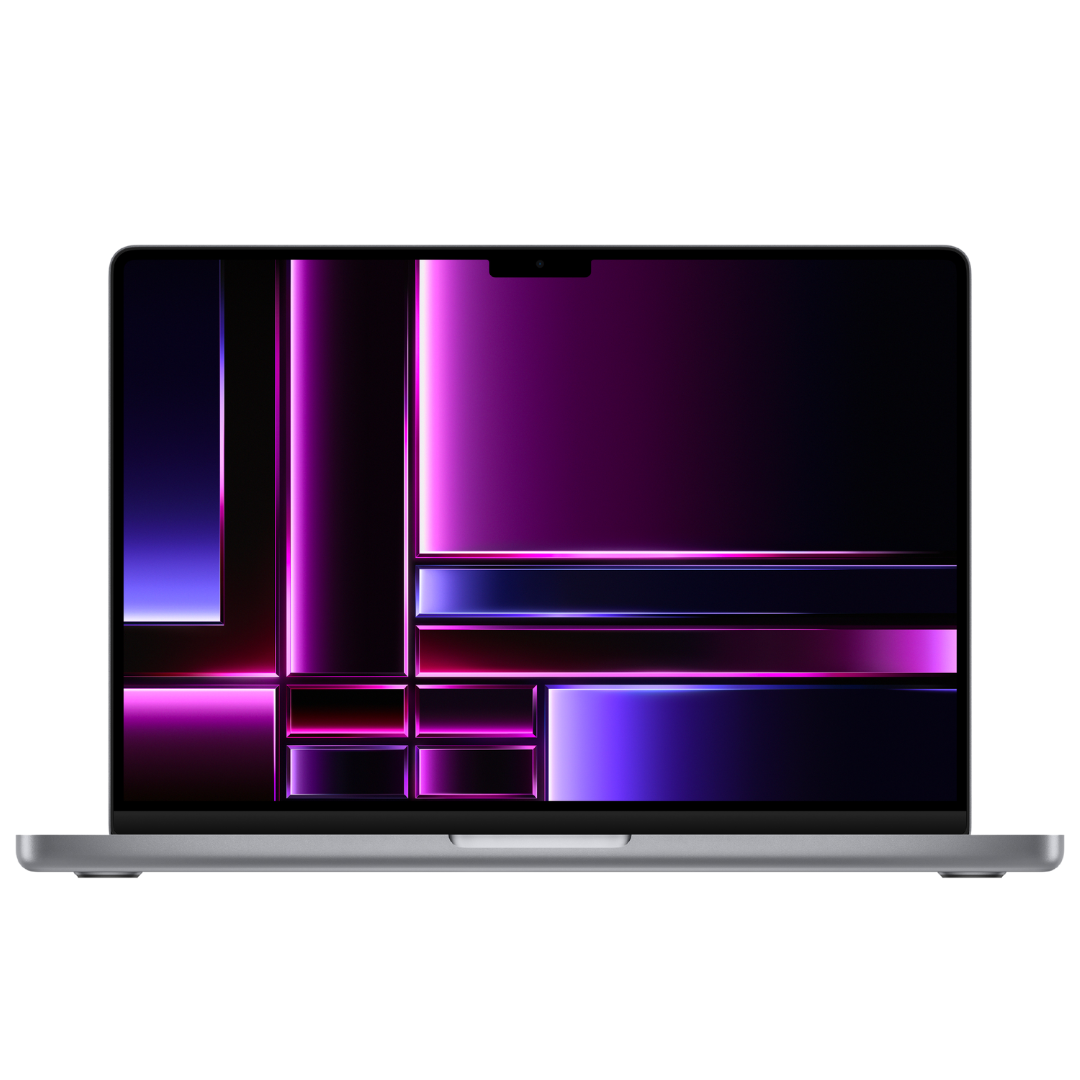
14.2-inch MacBook Pro (2023)
The latest 14.2-inch MacBook Pro (2023) features the new M2 Pro or M2 Max powered chips. The machine features up to 12 core CPU, up to 38 core GPU, up to 96G unified memory and 8TB storage. This is one of the most powerful laptops on the market in 2023 and one of the best devices for professionals and power users.
-
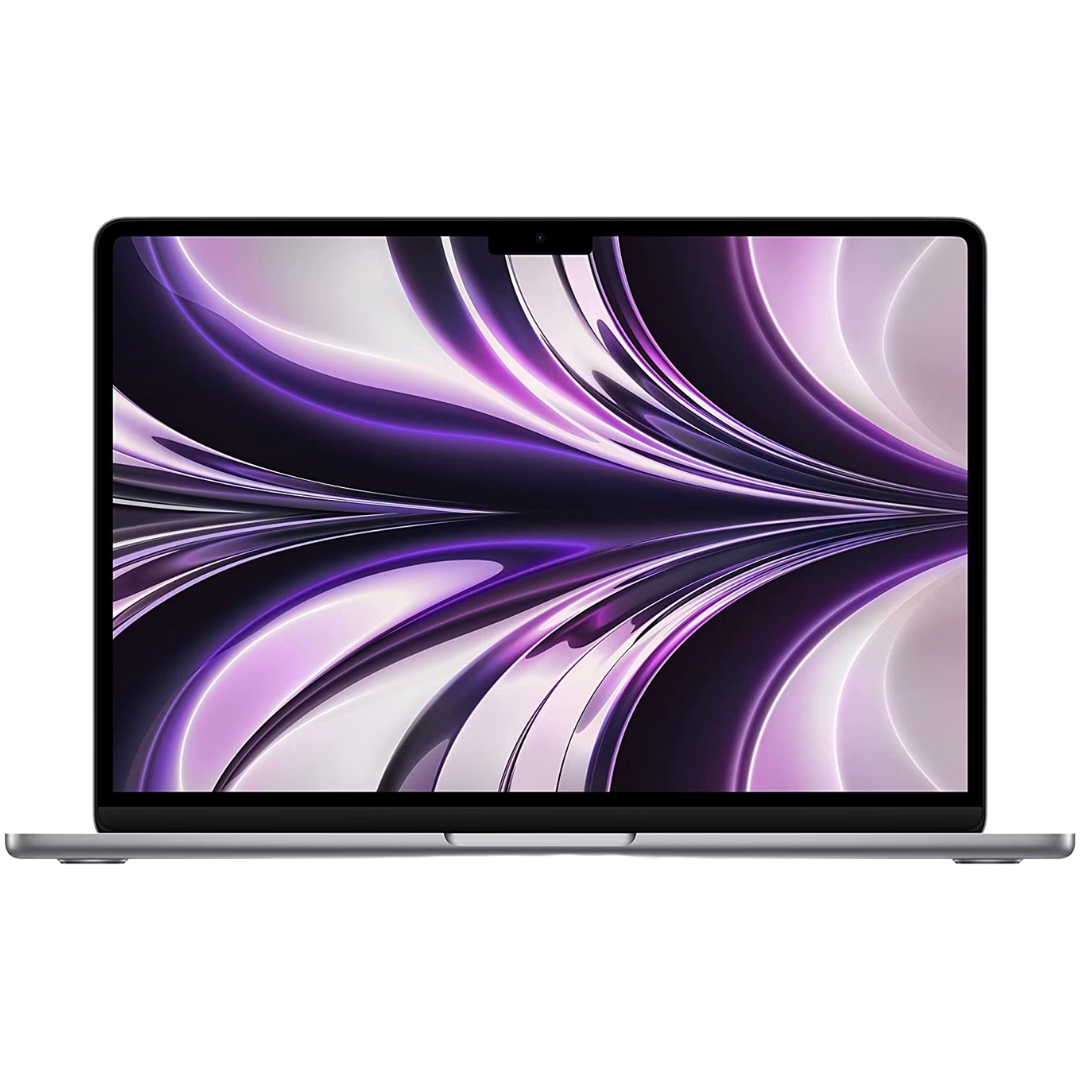
Macbook Air M2
The M2 MacBook Air offers significantly better performance than the M1 model. It comes with an all-new design just like the new MacBook Pro models, fast internal memory, great battery life, and an Apple M2 chipset that gives you all the performance you need for multitasking, editing, and working on the go. .
-
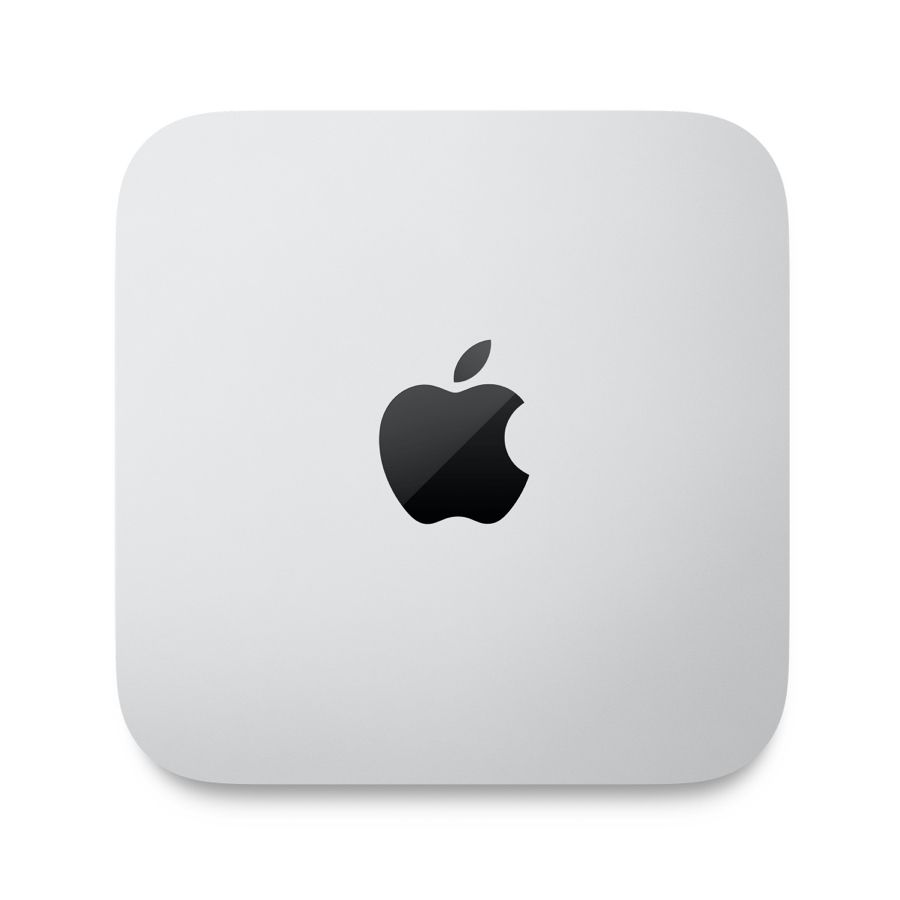
Mac mini with M2
The Mac mini is powered by the M2 chipset, which features an 8-core CPU with four high-performance, high-efficiency cores. It also has a 10-core GPU, up to 24 GB of RAM with 100 GB/s bandwidth, and a 16-core neural engine. It also comes with lots of ports from HDMI to SD card reader and more.


